Change the email address on your Samsung Account

If you switched over to a new email address or simply don’t use your current one any more, you can change your email address on your Samsung account. This can be done from your Galaxy phone or the Samsung website and takes only a few minutes to complete.
Note: Information provided applies to mobile devices sold in Canada. Available screens and settings may vary by wireless service provider, software version, and device model.
Please follow the steps below to change your Samsung account email address using your Galaxy phone.


Note: To use Samsung Pass, tap Get Started and follow the on-screen instructions to complete the procedure.
Please follow the steps below to change your Samsung account email address using a web browser.
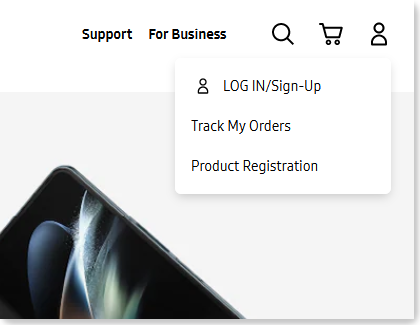

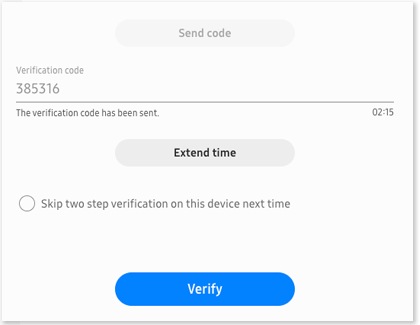
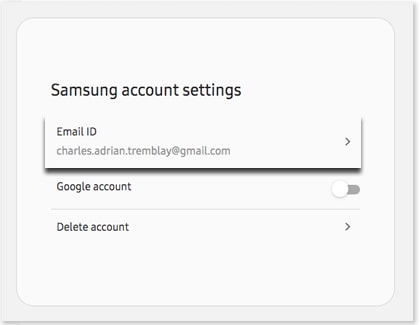
Your Samsung account ID can be recovered using an email ID hint or your recovery (secondary) phone number or email address.
Option 1: Recover your account ID using an Email ID hint


Step 1. Open Settings > Select Samsung account.


Step 2. Select Forgot password or don’t have an account?


Step 3. Select Forgot ID.


Step 4. Tap Trouble getting your account ID?


Step 5. Enter the requested information > Tap Continue.


Step 6. Review the Email IDs listed > Tap Sign in now > Sign into your account.
Option 2: Recover your account ID using your recovery phone number or email address
Step 1. Open Settings > Select Samsung account.
Step 2. Select Forgot password or don’t have an account?
Step 3. Select Forgot ID.


Step 4. Enter your recovery (secondary) phone number or recovery (secondary) email > Tap Continue.


Step 5. Enter the requested information > Tap Continue.


Step 6. Verify that the phone number or email displayed is yours > Tap Send code > Enter the verification code or PIN number > Tap Verify.


Step 7. Select an email ID > Tap Sign in now > Sign into your account.
Follow the steps below to begin resetting your password. Once you reach the verification screen, choose one of the four available methods to verify your identity and create a new password.


Step 1. Open Settings > Select Samsung account.


Step 2. Enter your account ID > Tap Next.


Step 3. Select Forgot password?


Step 4. Enter your email ID > Tap Reset password.


Step 5. Enter your account phone number > Tap Continue.
Option 1: Reset password through primary email


Step 1. Select Email verification > Tap Continue.


Step 2. Tap Go to inbox > Follow the instructions in the email.


Step 3. Enter a new password > Tap Next.
Note:
- Go to inbox not available: If you do not see the Go to inbox button on your phone, check your email inbox directly.
- Signed-in devices: You can choose to sign out or stay signed in to your Samsung account on other devices with active login sessions.
- Other verification options: In some countries where you can sign up with a mobile phone ID, you can also reset your password through phone number verification.
Option 2: Reset password using a security question


Step 1. Select Verify with security question.


Step 2. Answer your security question > Tap Verify.

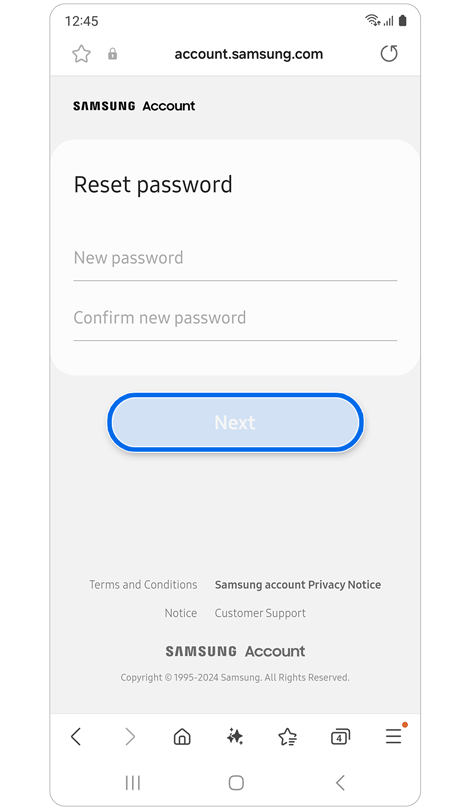
Step 3. Enter a new password > Tap Next.
Note:
- Signed-in devices: You can choose to sign out or stay signed in to your Samsung account on other devices with active login sessions.
- Security question required: To reset your password using a security question, you must have already registered one in your Samsung account settings.
Option 3: Reset password using a recovery email


Step 1. Select Verify with recovery number or email.


Step 2. Select Recovery email > Tap Continue > Tap Go to inbox > Follow the instructions in the email.


Step 3. Enter a new password > Tap Next.
Note:
- Signed-in devices: You can choose to sign out or stay signed in to your Samsung account on other devices with active login sessions.
- Recovery email required: To reset your password using a recovery email, you must have already registered a recovery email in your Samsung account settings.
Option 4: Reset password using a recovery phone number


Step 1. Select Verify with recovery number or email.


Step 2. Select Recovery phone number > Tap Continue.


Step 3. Enter your birthdate > Tap Continue.


Step 4. Verify the phone number displayed is yours > Tap Send code > Enter Verification code > Tap Verify.


Step 5. Enter a new password > Tap Next.
Note:
- Signed-in devices: You can choose to sign out or stay signed in to your Samsung account on other devices with active login sessions.
- Recovery phone number required: To reset your password using a recovery phone number, you must have already registered a recovery phone number in your Samsung account settings.
Additional resources:

Thank you for your feedback!
Please answer all questions.
RC01_Static Content : Hide call number function